Smartphone heating has become one of the most common issues nowadays. If your android phone is overheating and the battery drains fast then the main reasons behind this include frequent software updates and background apps. It can also occur due to several other factors such as heavy app usage, high screen brightness, poor network connectivity, charging habits, and continuous background processes. These activities can cause your phone to heat up and drain the battery quickly.
However, if you notice that your battery is draining much faster than before, don’t panic — you can fix overheating and battery drain problems easily with my tested settings.
When it’s normal heat vs when it’s dangerous?
When you feel too hot to touch your phone screen
Warning popup of high phone temperature
Auto shutdown Hotspot off timer notification (If on)
Auto shutdown phone due to high temperature.
Phone overheating what to do, is it safe to use an overheating phone?
No, you should stop using your phone and turn off the screen or switch off the device to cool it down faster. Otherwise, this might not only lead to battery drain but also damage your battery life and can cause serious issues or even make your phone burst. However, modern devices have an auto shutdown feature: when your phone’s temperature rises above a certain level(mostly above 45°C), it will first give a warning, and if the heating continues, the device will automatically shut down.
Manually switching off the phone can cool it much faster and reduce heating after a fresh start because background processes will not be running after restarting your device. This makes your phone consume less battery and significantly decrease in rise of temperature.
My phone is constantly heating up, and as a result the battery drains very fast. What should I do?
Basic Safety Checks Before Fixing Android Overheating and Battery Drain
Remove the case: Phone covers often trap heat due to poor thermal dissipation, causing the device to overheat. Remove the case to allow better airflow.
Stop gaming or streaming: Longer periods of heavy gaming or online streaming can generate excessive heat and make your phone overheat.
Unplug the charger if the phone is very hot: If your phone overheats while charging, unplug it and let it cool down before plugging it in again. Continuing to charge an overheated phone can damage the battery and may cause serious issues.
Keep the phone in a cool place: When not in use, place your phone in a cool, shaded area. Exposure to direct sunlight or high temperatures can lead to overheating. Note: A “cool place” doesn’t mean refrigerating your phone or sealing it in a plastic box — that can permanently damage the device.
Check Battery Usage to Find Apps Causing Fast Battery Drain on Android
Go to Android Settings → Battery → Battery usage by app. There you can find the Android battery usage screen to see which app is draining your battery. Click on each app to check the background active time. If you see the background active time is more than 15 minutes, that means those apps are secretly eating your battery power while you are not using them.
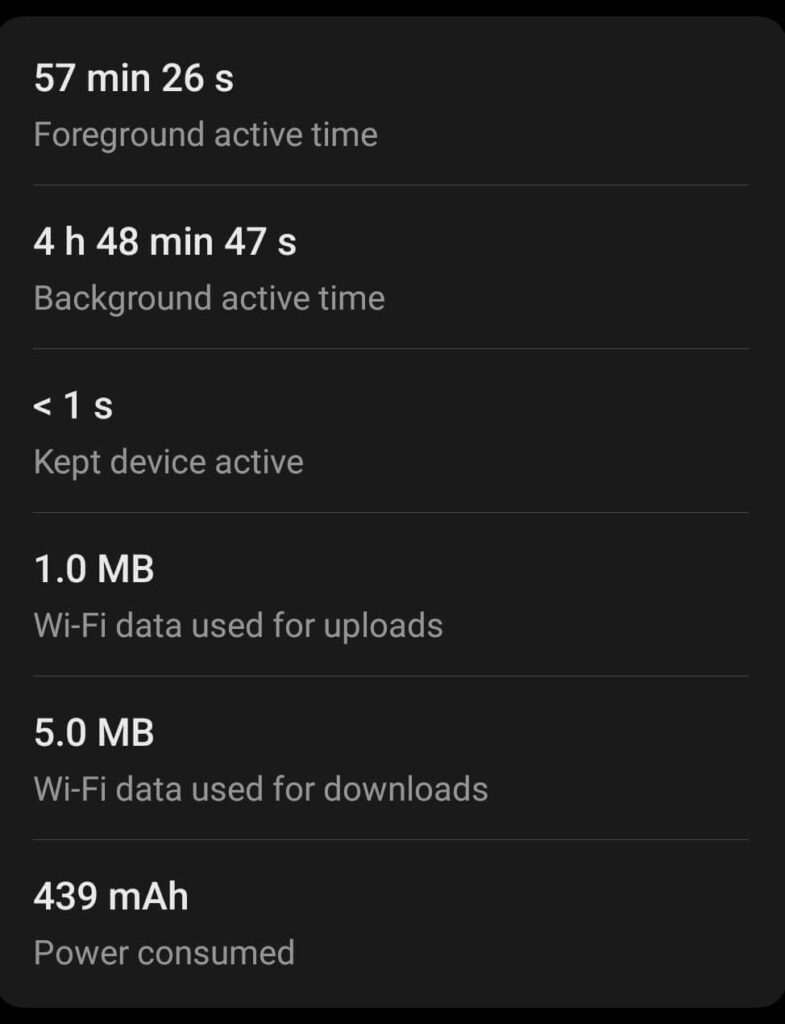
I have attached a screenshot for your reference. In the screenshot, you can see that the background active time is more than 5 hours.
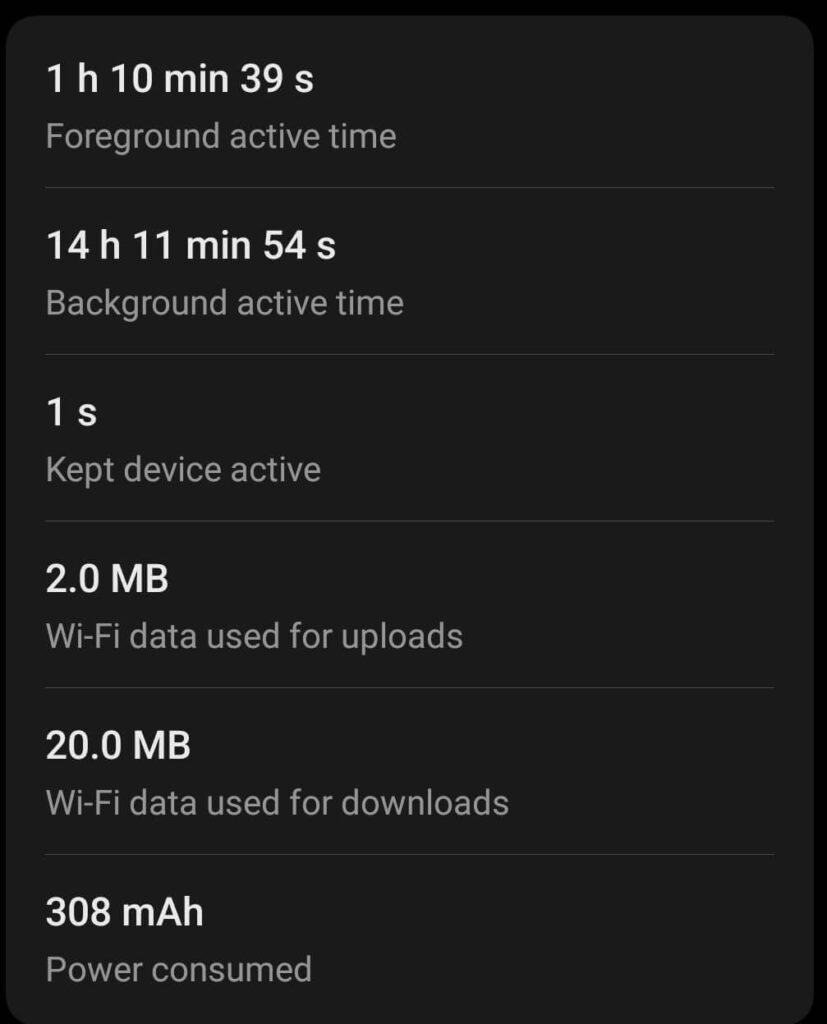
In another screenshot, we can see the background running time is more than 14 hours. So, these are the apps that you need to stop running in the background to prevent draining your battery quickly. In this guide we’ll show you all of the settings to prevent battery eating that causes battery dead fast and overheating phone.
Reasons for android phone getting hot and battery draining fast
High Resource consuming apps: With update apps are getting heavy to make it more smoothly and a good user interface. But this actually consumes high cpu & gpu power which causes heat and battery drain fast.
Heavy gaming/streaming online: If you play online game or streaming for longer time may cause heating and heat is the main enemy that consume battery life quickly.
Too many background apps: As already discussed above, background processes are the main culprit of battery drain and heat while you are not using them.
Full Screen brightness: When we go outside, mostly we set our brightness to full and using it for a long time can cause heating. More serious issues if you use it in direct sunlight can quickly increase your phone temperature. It’s better to set brightness to auto mode.
Apps or Phone updates: Sometimes outdated apps or recent phone operating system updates might cause bad performance and poor battery optimization.
Poor Network: If your network signal is weak then it’s always searching for a good signal or trying to increase network signal using hardware resources continuously.
GPS Location: We know that some apps need GPS to function properly like banking apps, UPI apps, Google maps etc that consume huge battery life even in the background.
Use original charger: Not using original charger cause improper supply of power lead to overheating the phone. If you use a third-party charger, make sure to check whether it’s compatible with your device’s specifications.
Battery charge cycle end: Every battery has a charge cycle limit, meaning the number of times it can be charged and discharged; once that limit is reached, the battery starts draining faster. Smartphone batteries typically handle 300-500 charge cycles. If there’s excessive heat, the battery health degrades even before reaching the full charge cycle count.
Best Safe Settings to Reduce Overheating and Fix Battery Life (My Tested Setup)
My recommended display settings for less heating and better battery Life
Adjust screen brightness: Always setting your screen brightness to Auto will save your battery and also reduce overheating.
Screen timeout: Set a shorter screen timeout duration helps in saving battery by turning off the display sooner when not in use. 1-2 minutes is my recommended setting that I use personally.
Switch to dark theme and wallpaper: If your phone has an OLED display, using dark mode can save battery because OLED screens turn off pixels to display black, reducing power consumption.
Screen refresh rate: Using a high refresh rate will increase battery consumption and cause the device to heat up. Best to set it Auto or low refresh rate (60 Hz).
Turn Off hidden android features that drain the battery fast (Background Apps, Sync, Location)
Goto Android battery settings or App management settings. Restrict apps background usage that consumes power they are not in use. Also turn on quick frozen/auto optimize which significantly help battery to last longer.
Stop unnecessary notifications: Apps with notifications enabled remain active to push notifications, which consumes a lot of power throughout the day. Go to notification settings and turn off ‘Allow notifications.
Force stop and uninstall built in bloatware: uninstall build it in bloatware likes games, social media apps, vpns and antivirus apps. These apps always eating battery even your phone is on idle.
Disable or limit location/GPS-hungry apps: Location is one of the most power-consuming settings on Android. Many of us keep this setting always on. However, some apps don’t need GPS to work properly or might only need it occasionally. Based on this, you can change the app permissions to ‘Don’t allow’ or ‘Ask every time’.
Kill heavy apps: When you are not using heavy apps like gaming, streaming, or navigation apps, try to kill or force stop them from Settings → Process Manager → Third-party apps.
Charging habits to stop your phone from getting hot while charging
Avoid using the phone while charging especially high Resource consuming tasks like Calling, gaming or streaming. It will produce heat and increase battery aging faster.
Poor charger or cable quality: Always use original or reputable cable and chargers for your phone and avoid fast chargers unless they are from the original manufacturer. Fast charging can cause excessive heating and may damage the battery over time.
Healthy battery: To maintain a healthy battery life, the first step is to reduce heat. When your phone has a low battery(below 20%), you may have noticed it heats up more. That’s why it’s best to charge your phone when the battery falls below 20-30% and stop charging once it reaches 80%. Use smart charging features in android and set a charging limit to 80% to protect the battery health and increase battery life.
Software Housekeeping: Keep Your Device Smooth and Stable
Update OS and Apps (Performance + Battery Fix): Keeping your operating system and all apps up to date ensures smoother performance. Most updates include security patches, thermal optimization, and battery efficiency improvements that help your phone run cooler and last longer.
Clear App Cache or Reinstall Problematic Apps: For apps that freeze or behave abnormally can consume much power and reduce battery. Start by clearing app cache and stored data (especially on Android).If the issue continues, reinstalling the app often fixes corrupted data files or old configuration problems that normal clearing can’t solve.
Factory Reset (Last‑Resort Solution): When performance issues or software glitches persist even after multiple fixes, perform a factory reset. Remember to back up all important data first, as this process wipes your device apps & data completely. A clean reset can remove deep‑level software errors and restore original stability.
Pro Tip: Schedule a quick software housekeeping session once every 3 months. Regular updates, cache cleaning, and diagnostic checks can significantly improve your phone’s battery health, speed, and thermal stability.
Hardware Causes & When to Seek Repair
Aging/Swollen Battery: Phone back bulging, rapid drain, or warm even idle—clear fire hazard from lithium-ion degradation after 2-3 years.
Fix: Immediate authorized battery replacement; never DIY.
Faulty Charging Circuitry: Damaged ports, water exposure, or short circuits generate excess heat during charging.
Fix: Professional diagnosis with specialized tools required.
Thermal Paste/Heat pipe Failure: Worn thermal paste fails during heavy gaming/5G, trapping processor heat.
Fix: Service center repair for component replacement.
Physical Damage: Drops or liquid damage disrupts heat dissipation, causing anomalies.
When: Heat continues after all software troubleshooting.
Pro Tip: Backup data first and visit the authorized center as soon as possible.
Other fixes: Stop android phone overheating and battery drain with these simple settings
Always turn on power saving mode before putting your phone idle.
Turn off NFC service.
Turn off Bluetooth and Hotspot while not in use.
Turn off Bluetooth and WiFi scanning. Setting → Location → Wifi and Bluetooth Scanning
Turn On Smart 5G to automatically switch between 5G and 4G to conserve battery. Setting → Mobile network → More settings → Smart 5G
Turn On Wifi calling and set calling preference to WiFi calling preferred. This reduces mobile network/radio usage by switching calls to WiFi—saving 20-30% battery during long calls. Works on Jio/Airtel/Vi networks with any WiFi available. Setting → Mobile → Toggle WiFi calling Preference → WiFi preferred
Turn Off Auto sync from Setting → users & accounts → Turn off automatically synchronise data.
App‑level settings most people ignore: In‑app options like auto‑play video, high graphics in games, auto back-up.
How to fix battery draining overnight in android? My Android Settings That Actually Work
If your Android phone is losing a lot of battery overnight, first leave it idle as usual for one night. In the morning, go to Settings → Battery → Battery usage and select your sleep hours in the graph section to see which apps or services used battery while you were sleeping. If one or two apps are on top, open that app’s info page and either restrict background activity, turn off unnecessary notifications and auto‑sync, or uninstall the app if you don’t really need it.
Make sure your phone is connected to a stable network at night – preferably a strong 4G signal – because a weak or fluctuating signal can drain the battery even when the screen is off.
At night, turn off extra features you don’t use, like bluetooth, hotspot, GPS location, always‑on display or edge lighting, because these can slowly eat up the battery in the background. And don’t forget to turn on the battery saver.
Turn on Super Power Saving / Ultra Power Saving mode to aggressively limit almost all background apps, sensors, always‑on display, GPS and other extra features. In this mode, only basic features like calling, SMS, clock and maybe one or two selected apps stay active, so the phone uses much less battery compared to normal mode. It won’t completely freeze the battery level, but in my tests it usually loses only 1–3% overnight instead of 10–20%.
Daily Checklist to Keep Your Android Cool and Extend Battery Life
Set screen brightness to Auto.
Set screen timeout to around 1-2 minutes so the display turns off quickly when you put the phone down.
Close heavy apps (games, video editors, navigation) once you are done instead of leaving them running in the background.
Turn off Wi‑Fi, Bluetooth, hotspot, GPS and NFC when you are not using them.
Avoid keeping the phone in direct sunlight, parked car, pillow or bed where heat gets trapped.
Charge with a good quality/original charger and keep the phone on a hard, open surface while charging.
Whenever the battery is low, use the Battery Saver / Super Power Saving mode instead of manually killing random apps.
Once in every month, check Settings → Battery → Battery usage and uninstall or restrict apps that always stay at the top.
Try not to let your phone battery below 20%, whenever you see it going under 30%, plug it in and charge it up to roughly 80–90% to keep the battery healthier in the long run.
Try to keep daily charging around 20–80%; many phones now let you set a charging limit (for example: Settings → Battery → Charging limit → 80%, name may differ by brand).
And once or twice in a month charge your phone to 100% to keep battery cycle, range and percentage accuracy healthy.




One response to “Android Phone Getting Hot and Battery Draining Fast? Best Safe Settings (My Tested Recommendations 2026)”
[…] Click Me […]