If you are curious about is it possible to login to an Amazon account more securely even without password and OTP. Here we are with Amazon Passkey passwordless login.
With Amazon Passkey you can signin to your Amazon account using biometrics method like fingerprint, facial recognition or a lock pin. So, no more need to remember password for each account. Unlike password that can easily forgotten, stolen, guess or breach.
What is a Amazon passkey?
Amazon Passkey is a new era of authentication in which you need your phone biometric authentication to unlock and eliminating the need of remember password by making it much easier, faster and secure way to login Amazon account.
How Amazon Passkey works?
Amazon Passkey works by creating a unique digital key pair stored securely on your device, replacing traditional passwords for login. When you sign in, it uses biometric scans like fingerprint or Face ID, or a device PIN, to prove it’s really you without sending any sensitive data over the internet.
Technical Mechanism of Amazon Passkey
Passkey relies on FIDO2 and WebAuthn standards, generating a public-private key pair during setup. The private key stays locked on your device, while the public key goes to Amazon’s servers for verification—meaning hackers can’t steal it remotely since it never leaves your phone or computer.This setup defeats phishing attacks because the passkey only activates for Amazon’s exact domain, and authentication happens locally via your device’s secure hardware like TPM or Secure Enclave.
How to set up passkey on Amazon website using PC?
Switching to Amazon Passkey is easy if you already have Amazon account. Login to Amazon official website using Google Chrome/Microsoft edge browser.
Click on Account & List → Your account → Login and Security
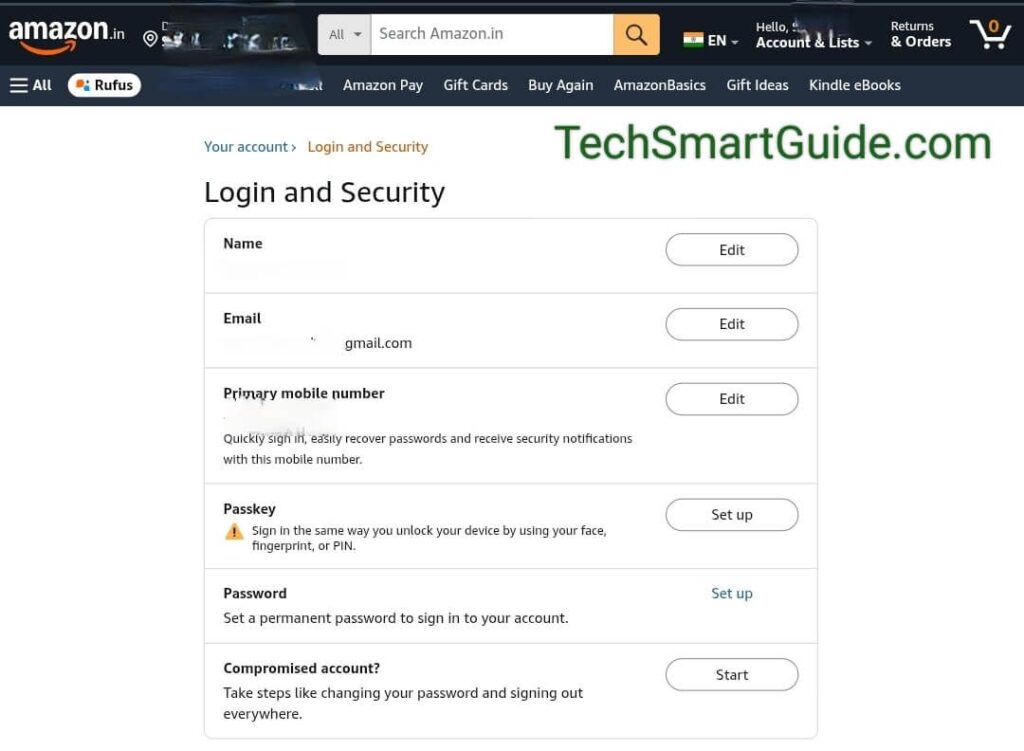
You may need to enter your password or verification code to verify that it’s really you making this modification.
Click on Setup button next to Passkey as shown in the image above.
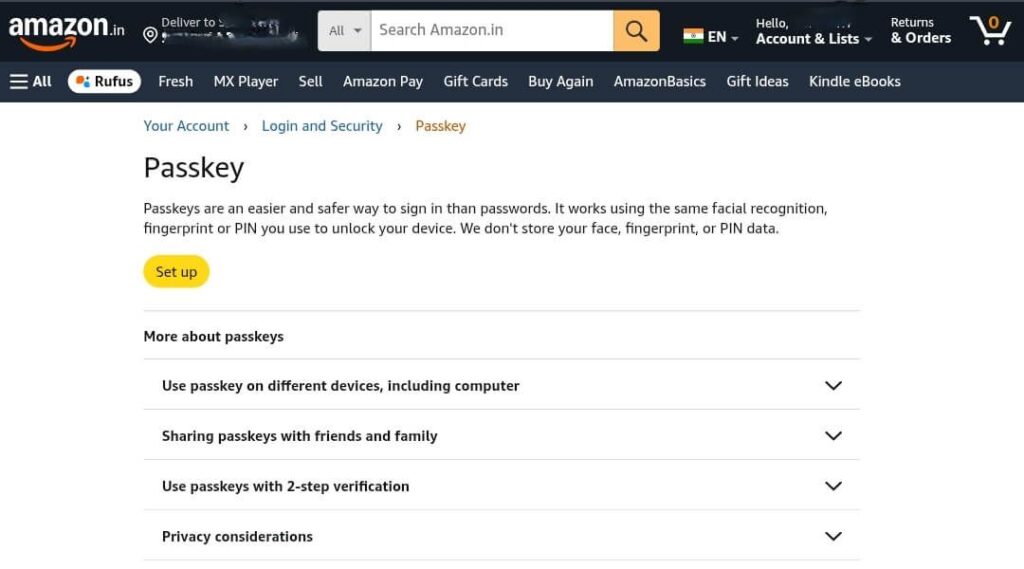
On the next screen, clicking the Setup button will let you choose a biometric authentication method to use as your Passkey. You can also add multiple biometric methods as Passkeys.
Next, it will ask you to store your Passkey in a password manager in case you lose your device. By default, it selects Google Password Manager, or you can choose your own if it supports passkeys.
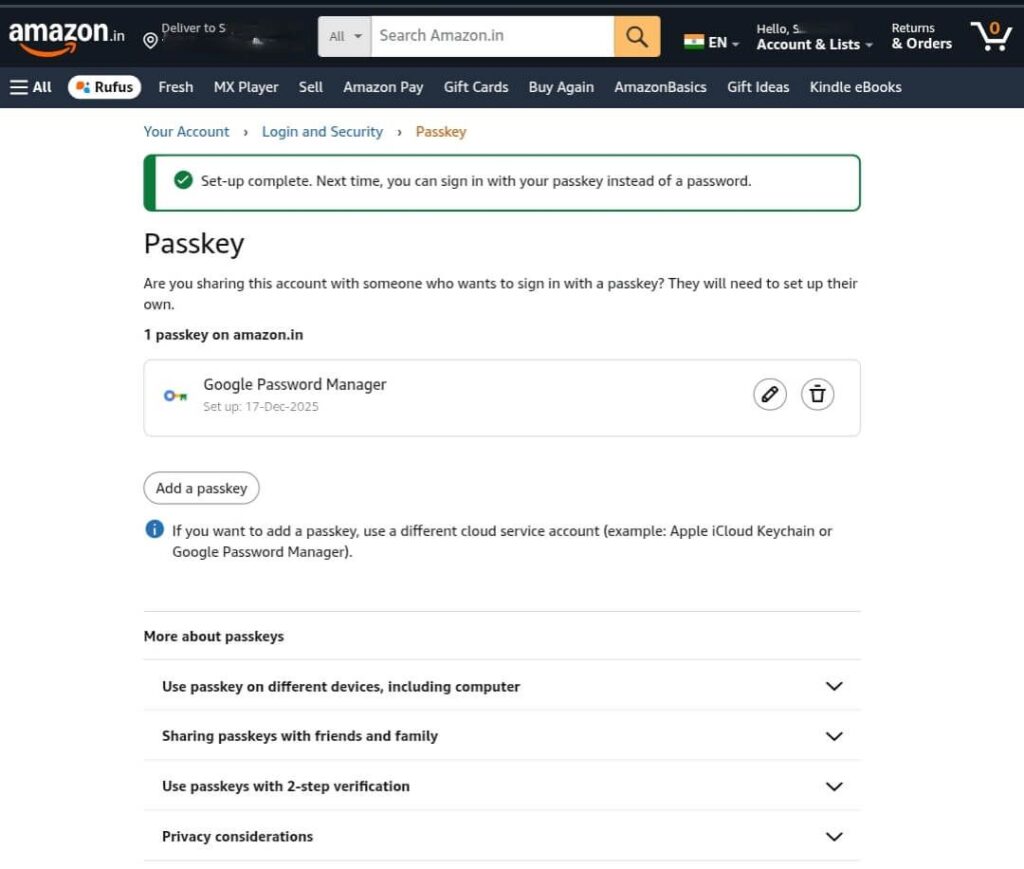
At the end, a confirmation message will appear on the passkey screen indicating that the Passkey has been set up successfully, as shown in the image above.
How to set up Amazon passkey on mobile app (Android/iPhone)?
If you are doing shopping from Amazon shopping app then it’s best to setup Passkey in mobile app. However, for iOS you need ios version 16 or higher and Android version 9 or above.
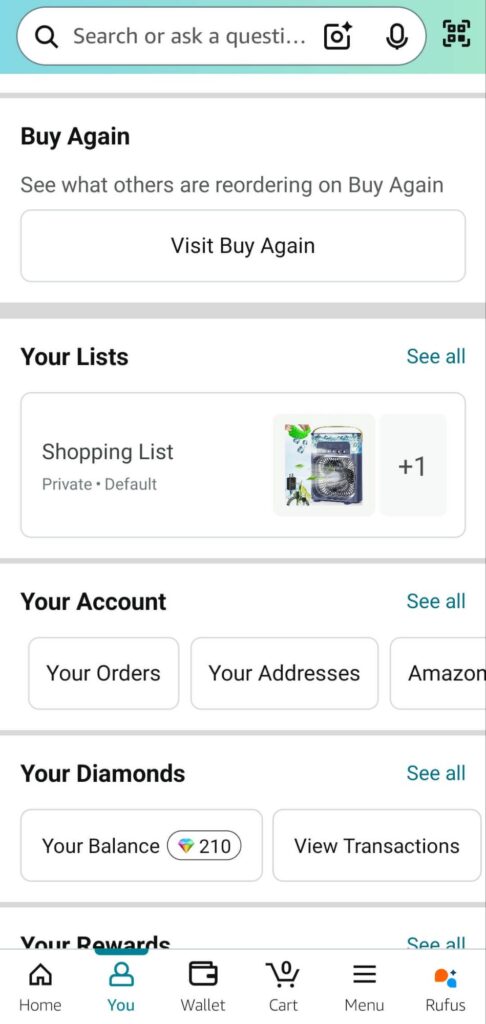
Open the Amazon app and login into your account if not done already.
Click on the Human icon below (Account) → Scroll down to Your Account → See all → Account Settings → Login & Security → Verify with Password or Verification code.
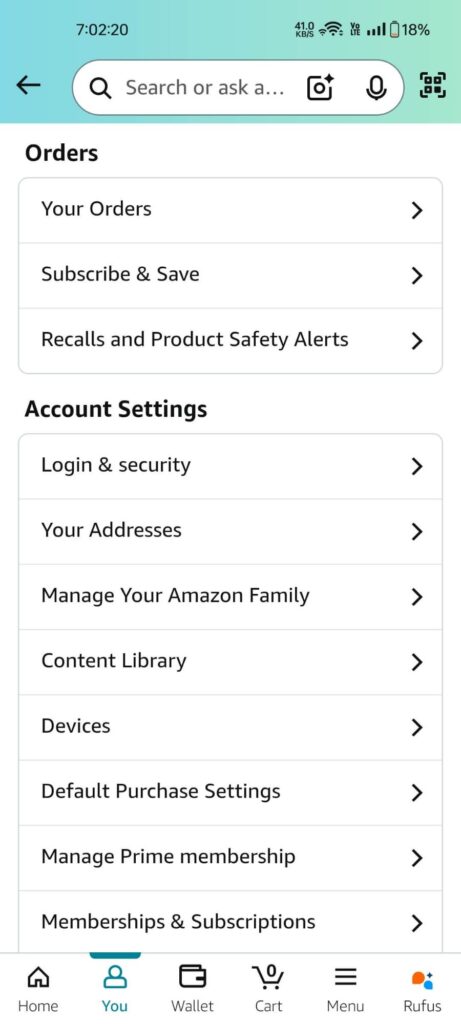
Next as shown in the image above, click on Setup button in Passkey.
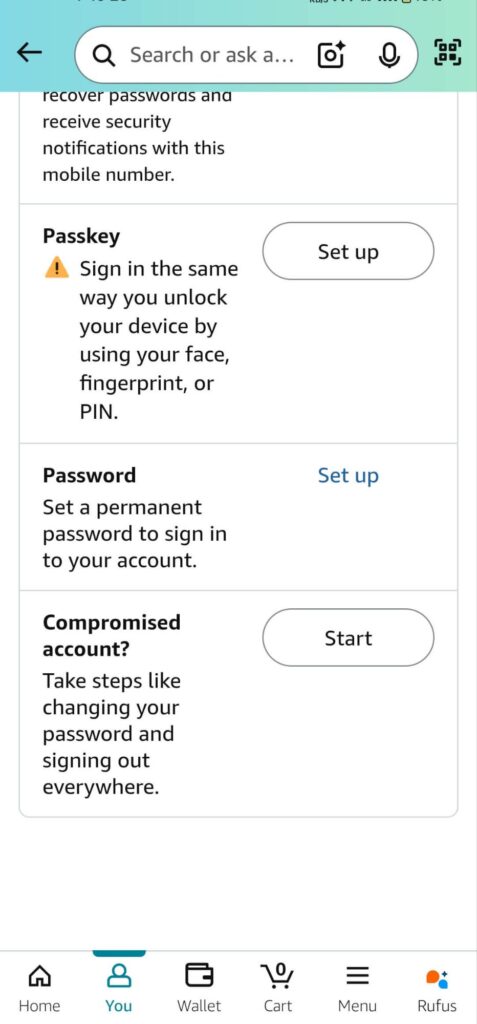
On an Android/ios phone, a prompt should pop up asking if you want to create a passkey for Amazon. C Continue and it will let you choose a biometric authentication method to use as your Passkey. You can also add multiple biometric methods as Passkeys and default method is the fastest way to choose and easy to login to Amazon portal.
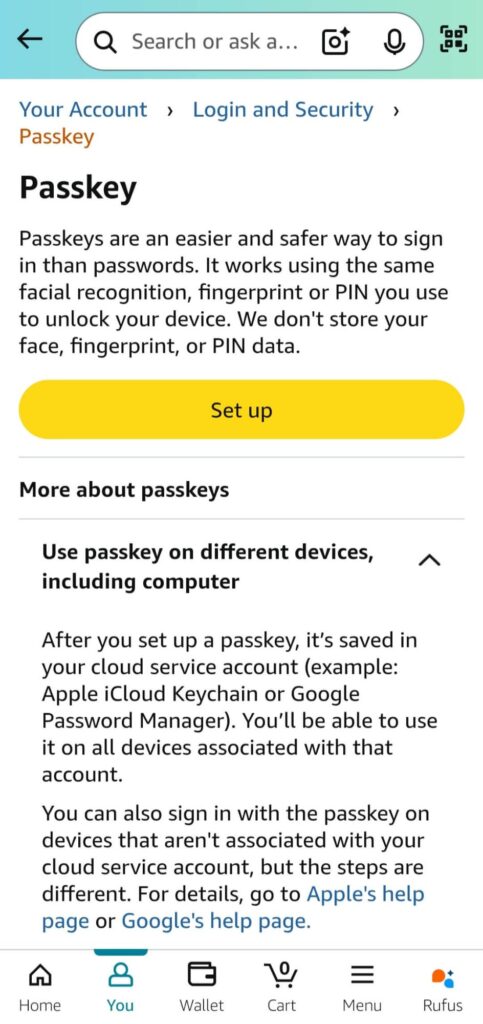
Next, it will ask you to store your Passkey in a password manager in case you lose your device. By default, it selects Google Password Manager, or you can choose your own if it supports passkeys.
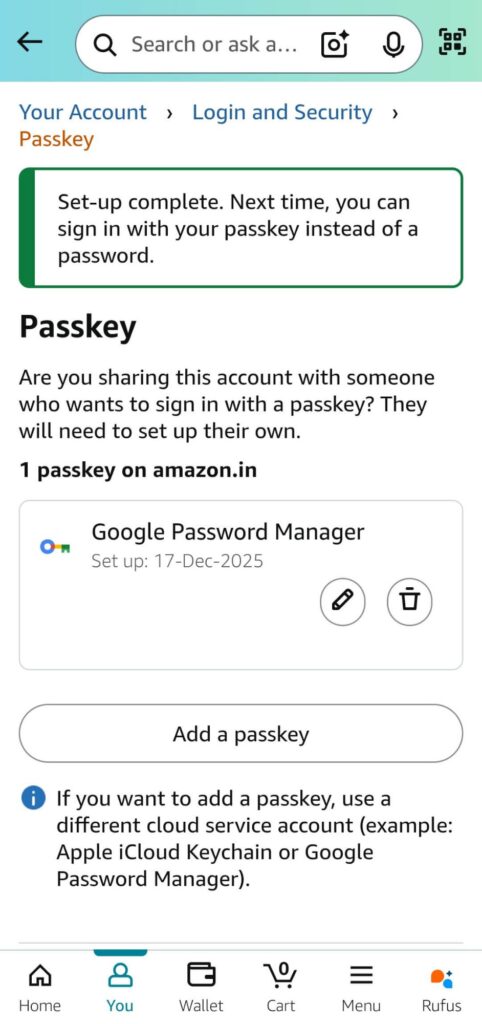
Finally, you will see a confirmation message on the passkey screen showing that your Passkey has been configured successfully, similar to the example in the image above.
How to login Amazon account using Passkey?
On the Amazon login page, enter your email or phone, then select “Sign in with Passkey.” Your device prompts for biometrics or PIN, signs a challenge from Amazon using the private key, and sends only a proof back—unlocking your account in seconds without typing passwords.
How to Delete Amazon Passkey?
If you ever want to delete your Passkey, head to Accounts & Lists > Account > Login & security and click the Edit button next to Passkey entry. Click the trash can icon for your passkey, and it’s removed.
To remove your passkey from the app, return to Your Account > Account Settings > Login & security and tap the Edit button next to the Passkey entry. Tap the trash can icon to delete the passkey you created.
Sync and Backup of Amazon Passkey
Passkeys sync across your devices via cloud services like iCloud Keychain or Google Password Manager if enabled, but you control this. For recovery, Amazon keeps your original password or 2FA as fallback, ensuring you won’t get locked out if a device is lost or stolen.
Is Amazon Passkey more secure than password?
Yes, Amazon Passkey is far more secure than passwords. Unlike passwords that can be guessed, reused, or phished, passkeys make this impossible—they’re exponentially stronger and drastically reduce account compromise risks.
Why is Amazon Passkey more secure than password?
Passkeys keep the private key locked on your device forever and it’s can’t be access, steal or reuse, block phishing with domain-specific checks, and use local biometrics/PIN—no sensitive data leaves your phone.
How do passkeys stop phishing attacks?
Passkeys tie authentication to Amazon’s exact website domain only. Fake phishing sites get zero access, even if you enter credentials.
Are passkeys safe if I lose my device?
Yes—private keys don’t sync without your control, and Amazon keeps password/2FA as recovery backup. Also you can store your Passkey using Google password manager or iCloud Keychain.