Gmail storage fills up surprisingly fast, preventing you from sending or receiving emails on your phone.
Gmail has become an essential part of daily life—think managing work emails, bills, photos, and important documents all in one place. However, its 15 GB free storage limit affects millions of users, as this space is shared across Gmail, Google Drive, and Photos, leading to frequent “storage full” notifications on your phone.
Why Clean Gmail Storage Frequently?
Cleaning up Gmail storage is essential for maintaining your email account’s efficiency and functionality. Over time, it fills with unwanted promotional emails, large attachments, and spam, which slow down performance significantly. This can prevent you from receiving new emails or sending messages altogether. While you can buy more storage from Google One for a monthly fee, regular cleanups let you avoid extra costs and keep your account running smoothly.

Let’s free up space in 5 minutes without using any software in Android
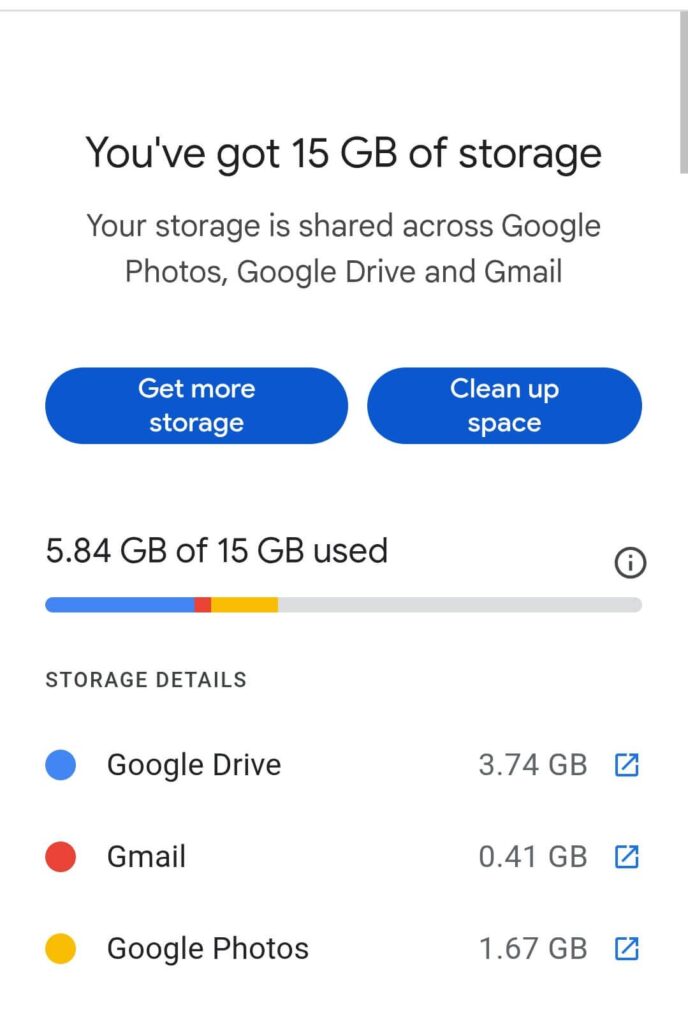
How to check gmail storage usage?
Open Google One app (or one.google.com/storage in browser).
See breakdown: Gmail vs Drive/Photos space hogs.
Pro tip: Phone auto-backups fill space fast—turn off Google Photos sync.
How to free up gmail storage space in phone?
Delete Large Attachments (Fastest, 1-2 Minutes)
Use filter in Search bar of gmail android app like has:attachment larger: 10M (or 5M/25M). Review all the emails and select by check in the box → Delete → Empty Trash. Free up space instantly from large attachment mails.
Clear Spam & Bulk Emails
Gmail app: Go to the Spam folder and Empty Spam now. Clear all unwanted mails at once.
Remove Older emails
Use filter in Search bar of gmail android app like older_than:1y to find all the emails older than one year and you can delete them in bulk.
Use gmail search filter to find specific unwanted mails to delete
Gmail search support a large combination to operator that helps you to filter out specific mails to delete at one click
Old Read Emails with Attachments (3+ Years)
older_than:3y is:read has:attachment larger:2M
Find dusty read emails with big files older than three years—select all, delete, empty Trash for instant GBs freed.
No-Reply Automated Notifications
from:(no-reply@* OR noreply@*) is:read older_than:1y
Targets automated junk like receipts/orders—bulk delete to stop inbox bloat.
Expired Promo/Newsletter Clutter
category:promotions before:2024/12/31 larger:1M -unsubscribe
Old heavy promos without unsubscribe links—perfect for Promotions tab cleanup.
Forgotten Event/Invite Reminders
subject:(invite OR RSVP OR “event confirmed” OR webinar) older_than:2y is:read
Past events piling up—archive or delete safely by using invitation or RSVP name.
Service Updates & Receipts
category:updates (“receipt” OR “order confirmation” OR “transaction”) older_than:18m
Find all read bank/app notifications—frees space without losing anything importants.
Unsubscribe from Unwanted Promotional Emails
Open promotional emails from senders you no longer want. Below the subject line, tap the “Unsubscribe” button to stop future emails—this prevents them from filling your storage.
Block unwanted emails
Even after unsubscribing, some senders keep emailing because they don’t honor requests. This continuously fills your Gmail storage unnecessarily.
In the Gmail app, open the email > Tap the three dots next to the subject > Select Block “sender”.
Empty Trash (Bin)
Deleted emails sit in the Bin for 30 days before auto-deleting, still eating your storage. In Gmail app: Go to Trash > Tap Empty trash now—watch your free space jump immediately.
Manage Google Drive & Photos on Phone
Drive app: Sort by size > Delete large files > Empty Trash.
Photos app: Turn off backup or auto sync > Delete cloud-only items.
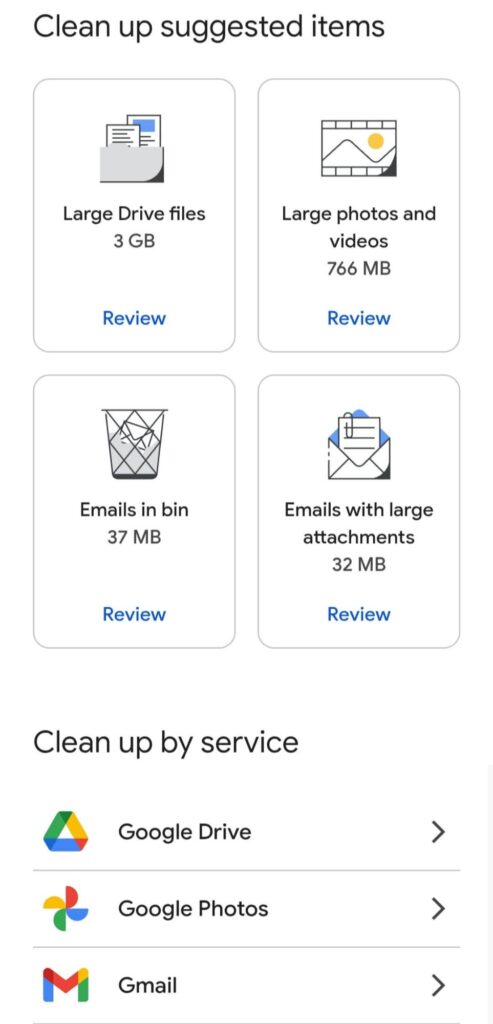
Quick delete: goto one.google.com/storage → Clean up categories
Why is my Gmail storage full after deleting everything?
Trash & Spam Still Eating Space
When you delete emails, they chill in Trash for 30 days (Spam too)—still hogging your quota. Manually empty both for real space.
Drive & Photos Sharing the Same 15GB
Gmail doesn’t work alone—big videos in Photos or forgotten Drive backups fill it fast. Check one.google.com/storage to see the real culprits.
Quick Fixes (Phone-Friendly Steps)1. Empty Trash/Spam Right Now
Gmail app → Trash/Spam → “Empty trash now” / “Delete all spam” → Watch space jump.
Hunt Drive/Photos Hogs
Open Google One app → Storage → Delete giant files/backups → Done
Nuke Large Attachments
Gmail search: has:attachment larger:10M → Select all → Trash → Empty
Conclusion:
Regular Gmail storage cleanup takes just 5 minutes but saves you from frustrating “storage full” blocks and Google One fees.
Quick Recap & Final Action Steps
Monthly routine: Empty Trash/Spam + larger:10M search + Google One check .
Gmail power: Use filters like older_than:1y category:promotions for instant GBs freed.
Stay ahead: Unsubscribe/block = zero future hassle .
Try these now—your Gmail will run smoothly like day one. This is how I efficiently clean up and free up storage space in my Gmail account in just 5 minutes. Share in comments: Which filter freed most space for you?